 iPhone
 Android
Before you connect
You need:
- a Spkr account with a default podcast;
- a current AI agent that supports remote Streamable HTTP MCP servers and OAuth;
- an agent version that publishes a public HTTPS Client ID Metadata Document (CIMD).
Spkr’s portable endpoint is:
https://mcp.spkr-app.com/agents/mcpThis endpoint is separate from the dedicated ChatGPT integration. Clients that support only Dynamic Client Registration (DCR), a manually entered client secret, local stdio, or no MCP at all cannot use this connection yet.
Connect Spkr
- Add a remote MCP server named Spkr using the endpoint above.
- Start or enable the server in your agent.
- Choose Sign in, Authenticate, or Login when the agent reports that authorization is required.
- Sign in to Spkr in your browser and review the named client on the consent screen.
- Allow
spkr.scripts.write. This permission lets the client create episodes in your default podcast; it does not grant delete or edit access. - Return to the agent and confirm that the two Spkr tools are available.
The exact menus and configuration files vary. The examples below apply only to versions that support HTTPS CIMD. If your client asks you to invent a client ID or secret, stop: that build is not using Spkr’s supported flow.
Claude Code
Add Spkr as a user-level HTTP server, then authenticate from Claude Code’s MCP menu:
claude mcp add --transport http --scope user spkr https://mcp.spkr-app.com/agents/mcpStart Claude Code, enter /mcp, select spkr, and complete the browser login. Use Clear authentication in the same menu to disconnect the stored authorization. Claude Code’s remote MCP documentation describes its HTTP and OAuth controls.
Cursor
In a supported Cursor build, add this personal server from Customize → MCP, or place the following in your global mcp.json:
{
  "mcpServers": {
    "spkr": {
      "url": "https://mcp.spkr-app.com/agents/mcp"
    }
  }
}
Restart the server, choose Login when prompted, and complete OAuth. Cursor CLI users can inspect the connection with agent mcp list and start authentication with agent mcp login spkr. See Cursor’s MCP configuration reference.
Codex
Codex users can add the Streamable HTTP server and bind OAuth to Spkr’s exact resource:
codex mcp add spkr \
  --url https://mcp.spkr-app.com/agents/mcp \
  --oauth-resource https://mcp.spkr-app.com/agents/mcp
codex mcp login spkr
Complete the browser approval, then run codex mcp get spkr to inspect the saved connection. Disconnect it with codex mcp logout spkr; remove the server configuration with codex mcp remove spkr.
Visual Studio Code
Run MCP: Add Server, choose HTTP, use the Spkr endpoint, and save it to your user profile. The equivalent user or workspace configuration is:
{
  "servers": {
    "spkr": {
      "type": "http",
      "url": "https://mcp.spkr-app.com/agents/mcp"
    }
  }
}
Start the server from mcp.json or MCP: List Servers, then use its authentication action. Only VS Code versions that identify themselves with HTTPS CIMD are compatible; DCR-only releases are not. Microsoft’s MCP server guide explains where user and workspace configurations live.
Ask for guidance, then create
Spkr exposes two portable tools. The first returns rewrite guidance without saving anything. The second creates an episode only after you express that intent.
Try:
Get Spkr’s podcast-script guidance. Rewrite this briefing for a curious general audience in about 10 minutes, keeping all facts and numbers intact. Show me the script before saving anything.
When the script is ready:
Create a Spkr episode titled “The Briefing, Explained” from the final script.
Or, for a finished conversation:
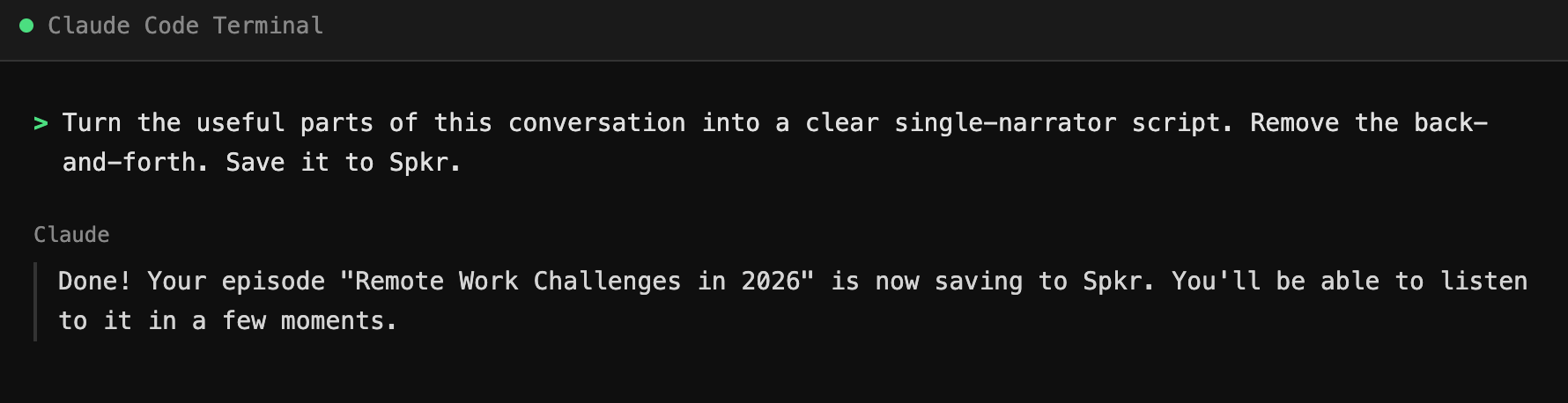
Turn the useful parts of this conversation into a clear single-narrator script. Remove conversational housekeeping, save it to Spkr.
Duplicates, credits, and failures
Spkr checks the script and optional source URL before creating an episode. If the same content already exists, the agent receives a duplicate result and can tell you which item matched. Ask it to retry with forceUpload: true only when you intentionally want another copy.
Episode creation uses the same processing credits as other Spkr uploads. If your account lacks credits, has no default podcast, or the script exceeds a supported limit, the tool returns a specific failure without silently creating content. Correct the account issue or shorten the script, then ask the agent to retry.
Privacy and accuracy
The agent decides what final script to submit. Spkr does not read the rest of your conversation and does not make another model call to rewrite it. The saved request can include a title, script, source URL, model name, and short conversion notes. Do not submit secrets, regulated data, or material you are not authorized to process.
Audio does not make generated text more reliable. Verify consequential names, numbers, quotations, medical or legal claims, and citations before approving the save.
Disconnect Spkr
Use your agent’s MCP authentication controls to clear or log out of the Spkr connection, then disable or remove the server entry. Clearing authorization prevents that stored refresh token from obtaining a new access token. Removing only the JSON entry may leave an authorization cached by the client, so use both controls when you want a complete disconnect.
Troubleshooting
The agent asks for a client ID or secret
That client is probably attempting DCR or static OAuth instead of CIMD. Update the client and confirm its release supports a public HTTPS Client ID Metadata Document. Never paste a made-up secret into the prompt.
The browser says the redirect is not registered
The agent’s published CIMD does not list the exact callback it requested. Update the agent or contact its vendor; Spkr does not accept unregistered redirect addresses.
Login succeeds but the tool still says authentication is required
Restart the MCP connection and authenticate again. Confirm the configured URL ends in /agents/mcp, not /mcp, and remove any manually configured bearer header.
Spkr reports insufficient scope
Clear the existing authorization and reconnect, approving spkr.scripts.write. A token issued for the ChatGPT endpoint cannot be reused with the portable agent endpoint, or vice versa.
The episode is a duplicate or does not appear
Check your default podcast and recent uploads. For an intentional second copy, explicitly ask the agent to force the upload. For a failed save, read the returned credit, length, or account error before retrying.